RDP Functionality in Ubuntu: Connect to Remote Computers and VMs Easily

The RDP (Remote Desktop Protocol) feature allows you to connect to a remote computer or virtual machine over a network. This is very convenient, but until recently, Ubuntu’s support for this was not straightforward. The built-in remote desktop program didn’t support creating new sessions, and most third-party tools didn’t work well if Wayland was in use.
With GNOME 46, the built-in remote desktop service received an update that added the ability to create new sessions. This makes it a viable replacement for tools like x11vnc or xrdp.
GNOME 46 also introduced a remote login feature for GNOME Remote Desktop. Now, the built-in remote desktop service consists of two separate services, both using the RDP protocol:
- The first service runs as superuser and is responsible for creating remote sessions, connecting to them, and by default uses port 3389.
- The second service runs as the user for the local session and allows connecting to the active user session as before, using port 3390.
Effectively, if you need to connect to a remote computer without a user physically present there, you use the first service.
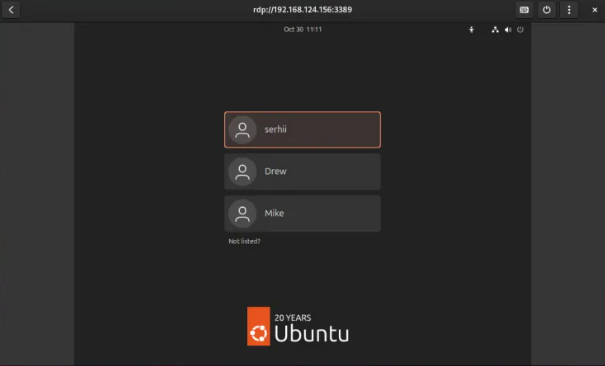
The remote login service is implemented in an interesting way, somewhat resembling XRDP. When you connect, you use your configured login and password and are taken to the GNOME login screen. Here, you can select the desired user and enter their password:
How to Set Up Remote Desktop in Ubuntu
Let’s look at how to enable remote desktop on Ubuntu 24.04 using the GNOME Remote Desktop (g-r-d) service.
Access to the Active Session
-
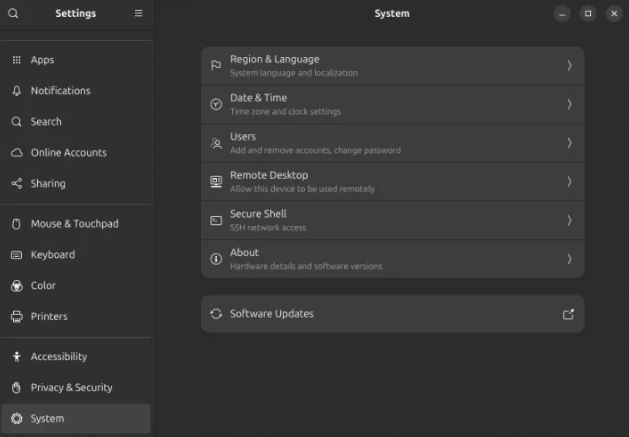
Open Settings, go to System, and select Remote Desktop:
-
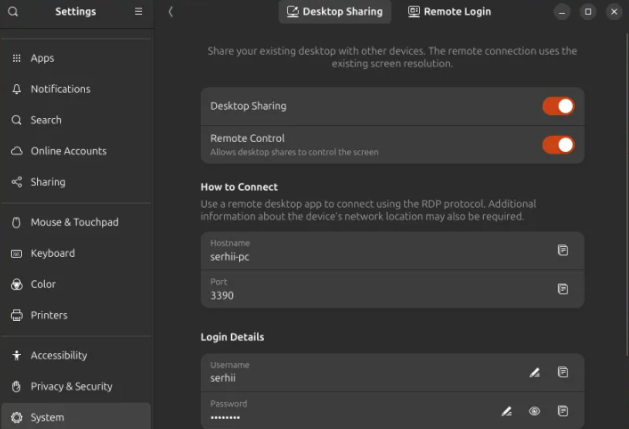
Switch to the Desktop Sharing tab.
-
Enable the toggles next to Desktop Sharing and Remote Control.
-
Specify a login and password for authorization under Login Details. If you don’t configure your own credentials, the program will use your current username and generate a random password.
-
Under How to Connect, you can see the port and hostname being used.
You can verify that everything is working by checking if the user service is running:
systemctl status --user gnome-remote-desktop
Remote Login
-
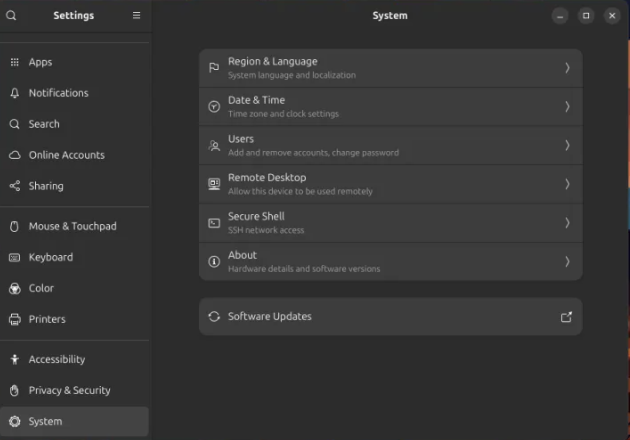
Open Settings, go to System, and select Remote Desktop:
-
Switch to the Remote Login tab.
-
Click Unlock and enter your user password to allow changing system settings:
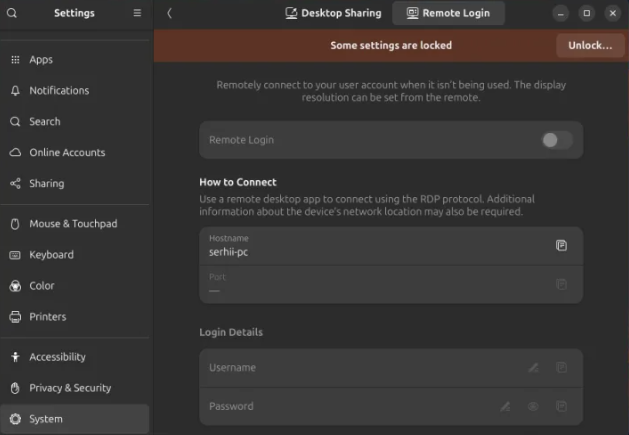
-
Enable the toggle next to Remote Login and specify the login and password for authorization under Login Details.
-
Close the Settings app and reboot your computer.
You can check that the service is running by executing:
sudo systemctl status gnome-remote-desktop
🚀 Explore more guides on our blog 👉 blog.1it.pro
📧 Contact us: admin@1it.pro for expert IT guidance.
🌐 Explore more: Visit 1it.pro for top-tier IT solutions.