⚡ Installing & Configuring ZSH on WSL Ubuntu Linux

ZSH (Z Shell) is a powerful alternative to Bash with better autocomplete, themes, and plugins.
If you’re using WSL (Windows Subsystem for Linux), here’s how to set up an optimized ZSH environment.
1️⃣ Enable WSL & Install Ubuntu
On Windows 10/11, enable WSL and install Ubuntu from the Microsoft Store.
Follow Microsoft’s official guide to get it running.
Once inside Ubuntu, update packages:
sudo apt update && sudo apt upgrade -y
2️⃣ Install ZSH & Required Packages
sudo apt install zsh git fonts-font-awesome -y
Run ZSH for the first time:
zsh
Follow the on-screen configuration prompts.
3️⃣ Set ZSH as the Default Shell
chsh -s $(which zsh)
Tip: If that doesn’t work, edit your ~/.bashrc:
if test -t 1; then
  exec zsh
fi
Restart your WSL terminal — ZSH should now be the default.
4️⃣ Install Powerline Fonts (for better themes)
Some ZSH themes require Powerline fonts.
On Windows PowerShell (as Administrator):
git clone https://github.com/powerline/fonts.git
cd fonts
.\install.ps1
5️⃣ Install Oh My ZSH (Highly Recommended)
Oh My ZSH is a framework for managing ZSH plugins & themes.
sh -c "$(wget https://raw.github.com/ohmyzsh/ohmyzsh/master/tools/install.sh -O -)"
6️⃣ Install Useful ZSH Plugins
🔹 Autosuggestions
Suggests commands from history as you type:
git clone https://github.com/zsh-users/zsh-autosuggestions \
${ZSH_CUSTOM:-~/.oh-my-zsh/custom}/plugins/zsh-autosuggestions
🔹 Syntax Highlighting
Highlights commands for better readability:
git clone https://github.com/zsh-users/zsh-syntax-highlighting.git \
${ZSH_CUSTOM:-~/.oh-my-zsh/custom}/plugins/zsh-syntax-highlighting
🔹 Auto-update Plugin (Optional)
Keeps Oh My ZSH updated automatically:
git clone https://github.com/Pilaton/OhMyZsh-full-autoupdate.git \
${ZSH_CUSTOM:-~/.oh-my-zsh/custom}/plugins/ohmyzsh-full-autoupdate
7️⃣ Enable Plugins
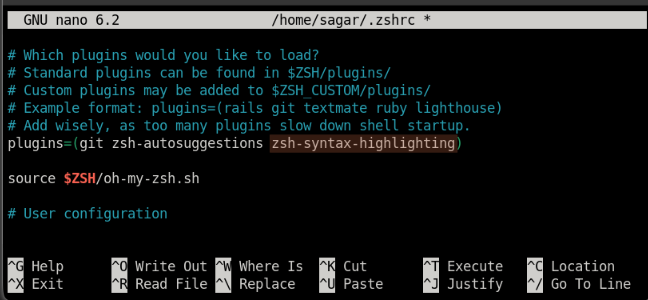
Open ~/.zshrc in your editor:
vim ~/.zshrc
Update the plugins line:
plugins=(
    command-not-found
    extract
    docker
    git
    github
    gitignore
    history-substring-search
    node
    npm
    nvm
    yarn
    volta
    vscode
    sudo
    zsh-autosuggestions
    zsh-syntax-highlighting
)
Apply changes:
source ~/.zshrc
8️⃣ Install & Configure Powerlevel10k Theme
Powerlevel10k is one of the best ZSH themes.
Install it:
git clone --depth=1 https://github.com/romkatv/powerlevel10k.git \
${ZSH_CUSTOM:-$HOME/.oh-my-zsh/custom}/themes/powerlevel10k

Set it as the default theme in ~/.zshrc:
ZSH_THEME="powerlevel10k/powerlevel10k"
Restart ZSH:
zsh
The Powerlevel10k configuration wizard will guide you through prompt customization.
You can re-run it anytime:
p10k configure
🎯 Final Result
After completing these steps, you’ll have:
- ⚡ Faster & smarter command-line experience
- 🎨 A beautiful, customizable prompt
- 🔌 Productivity-boosting plugins
💡 Pro Tip:
If you want a one-command installation with all settings preconfigured, check out this script:
Install-ZSH-in-WSL-Ubuntu-Linux
🚀 Explore more guides on our blog 👉 blog.1it.pro
📧 Contact us: admin@1it.pro for expert IT guidance.
🌐 Explore more: Visit 1it.pro for top-tier IT solutions.